Amazon S3 Integration Task
This page describes how to create an Amazon S3 integration task that imports files from an S3 bucket into Databend. CSV, Parquet, and NDJSON file formats are supported, and the task can be configured for one-time import or continuous ingestion.
If you need to create reusable AWS credentials first, see Amazon S3 - Credentials.
Supported File Formats
| Format | Description |
|---|---|
| CSV | Comma-separated values with configurable delimiters and headers |
| Parquet | Columnar storage format, efficient for analytical workloads |
| NDJSON | Newline-delimited JSON, one JSON object per line |
Prerequisites
- An Amazon S3 - Credentials data source has already been created
- The AWS credentials have read access to the target S3 bucket
- If you plan to enable Clean Up Original Files, the credentials also need write and delete permissions
Creating an S3 Integration Task
Step 1: Basic Info
-
Navigate to Data > Data Integration and click Create Task.
-
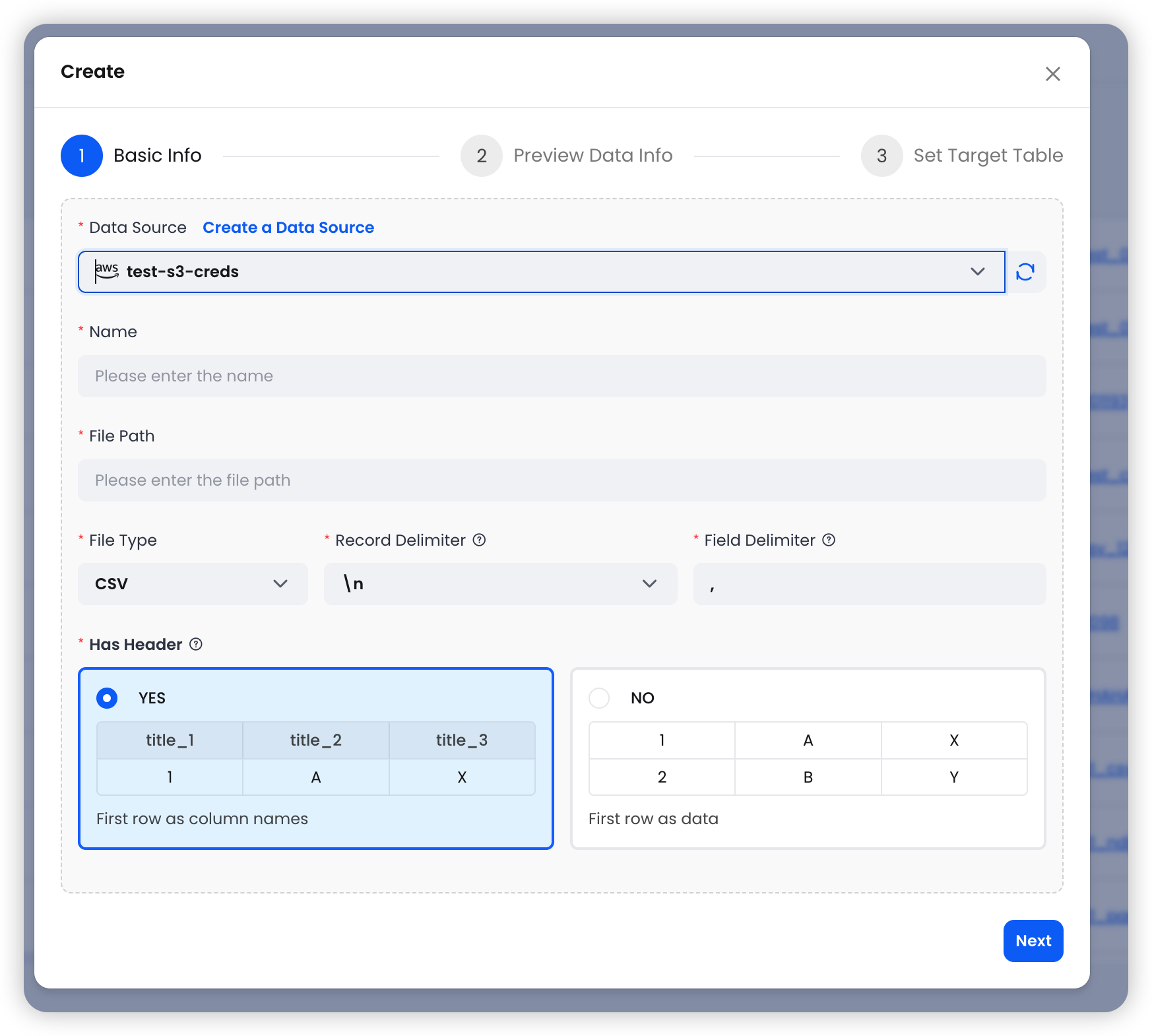
Select an S3 data source, then configure the basic settings:
| Field | Required | Description |
|---|---|---|
| Data Source | Yes | Select an existing Amazon S3 - Credentials data source from the dropdown |
| Name | Yes | A name for this integration task |
| File Path | Yes | S3 URI with optional wildcard pattern (e.g., s3://mybucket/data/2025-*.csv) |
| File Type | Auto | Auto-detected from file extension. Supported: CSV, Parquet, NDJSON |
CSV Options
When the file type is CSV, additional options are available:
| Field | Default | Description |
|---|---|---|
| Record Delimiter | \n | Line separator. Options: \n, \r, \r\n |
| Field Delimiter | , | Column separator. Supports custom values |
| Has Header | Yes | Whether the first row contains column names. If disabled, columns are auto-named as c1, c2, c3, etc. |
File Path Patterns
The file path supports wildcard patterns for matching multiple files:
s3://mybucket/data/2025-*.csv        # All CSV files starting with "2025-"
s3://mybucket/logs/*.parquet         # All Parquet files in the logs directory
s3://mybucket/events/data.ndjson     # A single specific file
Step 2: Preview Data
After configuring the basic settings, click Next to preview the source data.
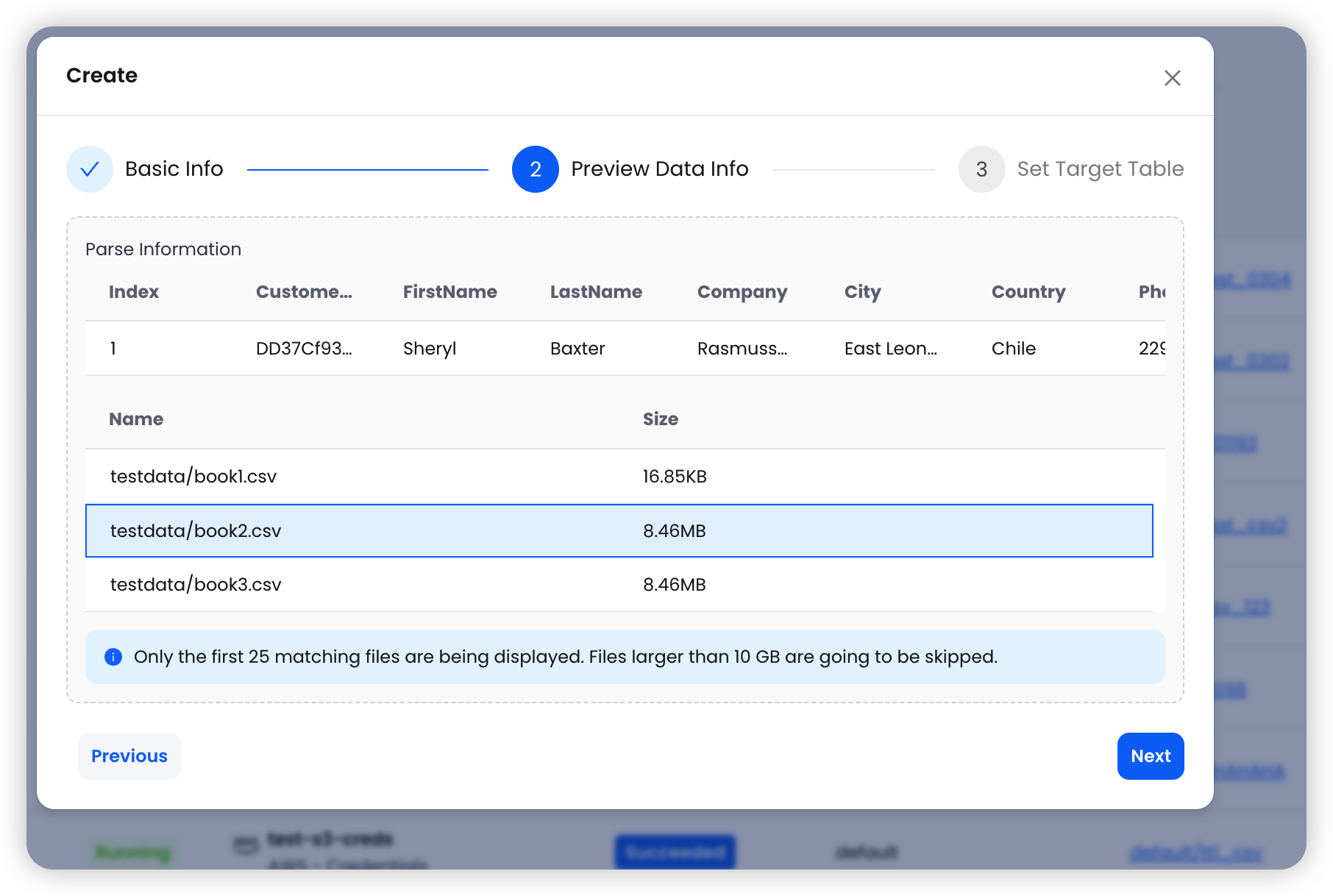
The system reads the first matching file and displays:
- Sample data with column names and types
- A list of matching files (up to 25 files) with their sizes
Files larger than 10GB are skipped during preview. Only the first 25 matching files are displayed.
Step 3: Set Target Table
Configure the destination in Databend:
| Field | Description |
|---|---|
| Warehouse | Select the target Databend Cloud warehouse for running the import |
| Target Database | Choose the target database in Databend |
| Target Table | The table name in Databend |
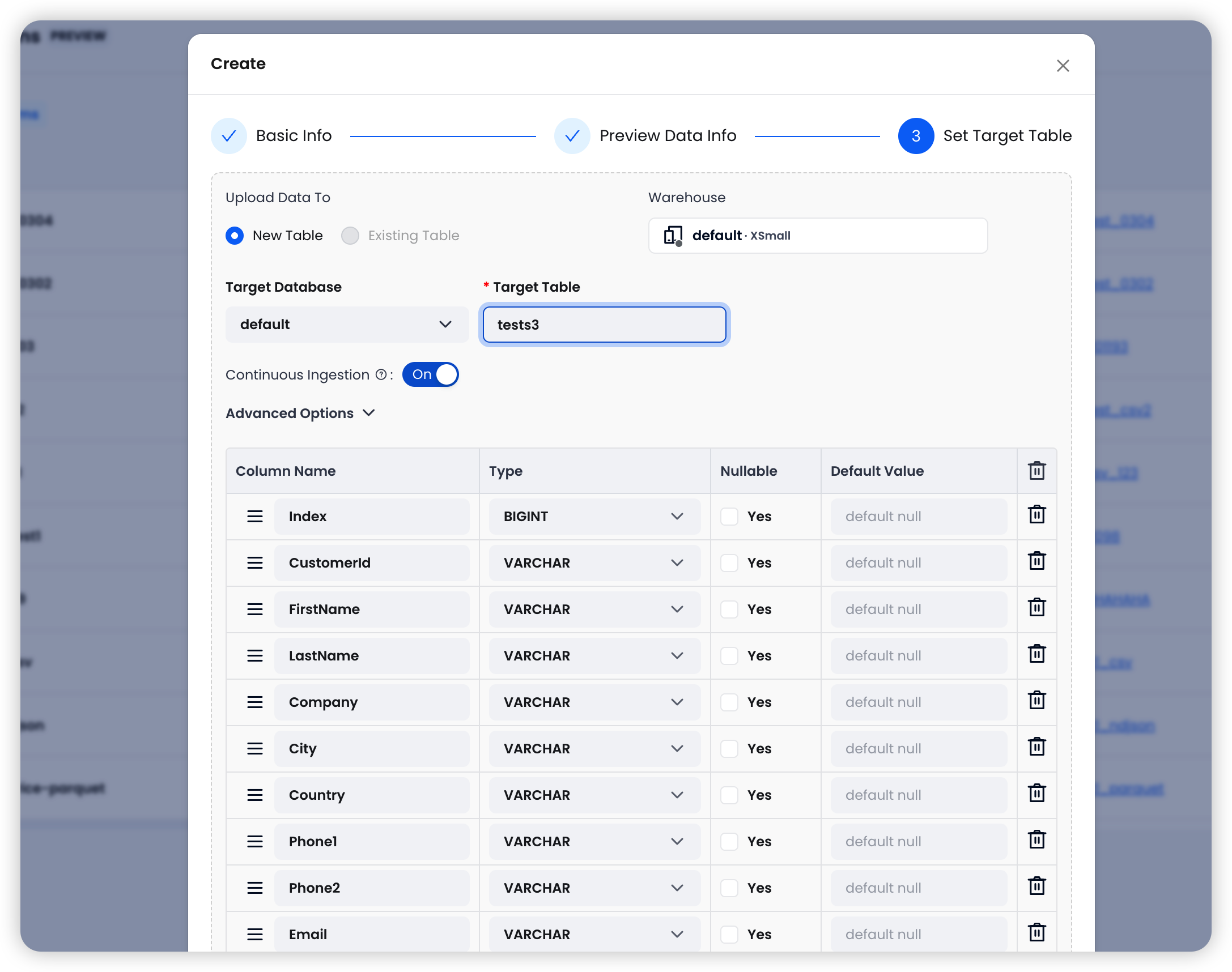
The system auto-detects columns from the source files. You can review and edit column names and types before proceeding.
Ingestion Options
| Option | Default | Description |
|---|---|---|
| Continuous Ingestion | On | When enabled, the system periodically (every 30 seconds) polls the S3 path and imports new files |
| Error Handling | Abort | Abort: Stop on first error. Continue: Skip failed rows and continue importing |
| Clean Up Original Files | Off | When enabled, deletes source files from S3 after successful import |
| Allow Duplicate Imports | Off | When enabled, allows re-importing files that have already been imported |
Enable Continuous Ingestion when new files are regularly added to the S3 path and you want them automatically loaded into Databend. Disable it for one-time imports.
Click Create to finalize the integration task.
Task Behavior
| Continuous Ingestion | Behavior |
|---|---|
| On | Runs continuously, polling S3 every 30 seconds for new files and importing them automatically. |
| Off | Imports matching files once and stops. Already-imported files are skipped unless Allow Duplicate Imports is enabled. |
Advanced Configuration
Continuous Ingestion
When enabled, the task runs as a long-lived process that periodically scans the S3 path for new files. Each cycle:
- Lists objects matching the file path pattern
- Identifies new files not yet imported
- Imports new files into the target table using
COPY INTO - Records import results in the task history
This is useful for data pipelines where upstream systems continuously write new files to S3.
Error Handling
- Abort (default): The import stops at the first error encountered. Use this when data quality is critical and you want to investigate any issues before proceeding.
- Continue: Skips rows that cause errors and continues importing the remaining data. Use this when partial imports are acceptable and you want to maximize data throughput.
Clean Up Original Files (PURGE)
When enabled, source files are deleted from S3 after they are successfully imported into Databend. This helps manage storage costs and prevents reprocessing. Ensure your AWS credentials have s3:DeleteObject permission on the target bucket.
Allow Duplicate Imports (FORCE)
By default, the system tracks which files have been imported and skips them in subsequent runs. Enabling this option forces re-import of all matching files, regardless of whether they have been previously imported. This is useful when you need to reload data after schema changes or data corrections.