MySQL - Credentials
This page describes how to create a MySQL - Credentials data source. This data source stores the connection information required to access MySQL and can be reused across multiple MySQL integration tasks.
Use Cases
- Manage host, port, and account information centrally for multiple MySQL sync tasks
- Avoid re-entering the same database connection settings in every task
- Update all dependent tasks in one place when the database endpoint or account changes
Create MySQL - Credentials
- Navigate to Data > Data Sources and click Create Data Source.
- Select MySQL - Credentials as the service type, then fill in the connection details:
| Field | Required | Description |
|---|---|---|
| Name | Yes | A descriptive name for this data source |
| Hostname | Yes | MySQL server hostname or IP address |
| Port Number | Yes | MySQL server port (default: 3306) |
| DB Username | Yes | Username used to access MySQL |
| DB Password | Yes | Password for the MySQL user |
| Database Name | Yes | The source database name |
| DB Charset | No | Character set (default: utf8mb4) |
| Server ID | No | Unique binlog replication identifier. Auto-generated if not provided |
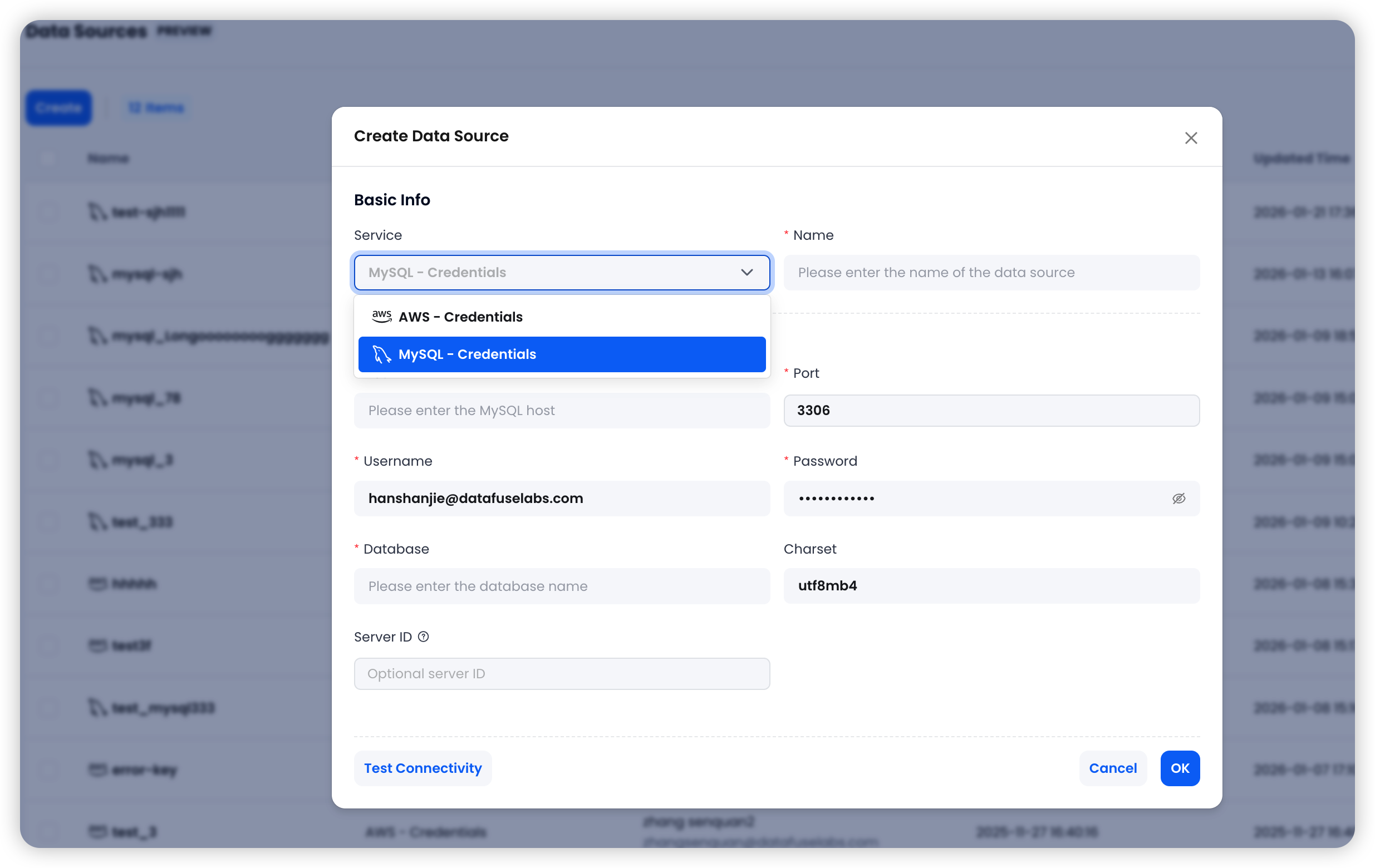
- Click Test Connectivity to validate the connection. If the test succeeds, click OK to save the data source.
Usage Recommendations
- Use a dedicated MySQL account instead of sharing one with application workloads
- If you plan to create
CDC OnlyorSnapshot + CDCtasks, make sure the account has replication-related privileges - Verify network access, binlog configuration, and permissions before creating downstream tasks
Next Steps
After creating this data source, you can use it to create a MySQL Integration Task.